Online Manual
streamZ User Guide

3.2 Dock Expansion Guide
Enhance your workflow by connecting streamZ with a dock to expand available ports.

📢 Tip

- Use high-quality cables to ensure stable signal transmission.
- Connect devices only when needed to keep the system lightweight.
- For multi-camera setups, enable ISO mode to simplify independent post-editing.
Connection and Setup
- Connect the dock to streamZ via the USB-C input port.
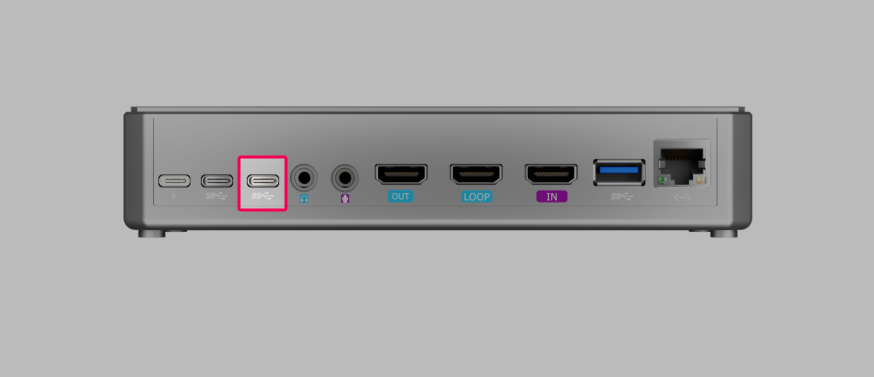
- Connect cameras, microphones, external drives, and other devices as needed.
- Check the video signals status on the Preview from the web interface.
Live streaming content varies widely depending on the creator's focus.
Major platforms such as Twitch commonly categorize streams into areas like Games, IRL, Music & DJs, Creative, and Esports.
streamZ, combined with the expansion dock, enables creators to connect cameras, microphones, and other peripherals to support these different streaming workflows.
See 3.2 Use Cases to explore streaming types and setups, and share your own configurations in the comments to inspire other streamZ users.
Use Cases
E-Commerce/Live Shopping
This scenario focuses on presenting products in real time and interacting with viewers.
Typical Setup
- One camera for the host
- One camera for close-up product shots
- Professional microphone
- Lighting equipment
- Stable wired network connection
How streamZ Helps
With the expansion dock, streamZ can connect multiple cameras and audio devices simultaneously.
This allows creators to switch between host and product views while maintaining stable video quality during the stream.
Entertainment and Creator
This category covers streams where content is primarily focused on entertainment, creative expression, or live interaction.
streamZ, combined with the expansion dock, allows creators to connect multiple cameras, microphones, and other peripherals to support these diverse workflows.
Games
Gaming streams typically require capturing gameplay while showing the streamer on camera.
Typical Setup
- Gaming PC or console
- One camera for the streamer
- Optional secondary camera for gameplay or room view
- Microphone or headset
- Stable wired network connection
How streamZ Helps
The expansion dock allows streamZ to connect the gameplay capture, camera inputs, and microphone simultaneously.
Users can manage multiple sources and maintain low-latency, high-quality streaming.
Music & DJs
Music streams focus on live performances, DJ sets, or instrument demonstrations.
Typical Setup
- XLR condenser microphone or instrument microphone
- Audio interface or mixer
- One or more cameras
- Monitoring headphones
How streamZ Helps
Through the expansion dock, streamZ can connect professional audio interfaces, microphones, and cameras at the same time.
This enables high-quality audio and video delivery for live music or DJ sessions.
Creative
Creative streams include activities such as drawing, painting, crafting, or other artistic processes.
Typical Setup
- Camera for the creator
- Overhead or workspace camera
- Microphone for narration
- Lighting equipment
How streamZ Helps
The expansion dock allows multiple camera inputs, enabling creators to show both themselves and their workspace.
This provides flexibility for different creative workflows while maintaining stable video and audio signals.
IRL
IRL means In Real Life. This type features real-world activities such as daily life, travel, or outdoor experiences.
Typical Setup
- Smartphone or compact camera
- Portable microphone
- Mobile or wired network connection
- Lightweight streaming setup
How streamZ Helps
streamZ serves as a compact streaming hub.
The expansion dock allows flexible connection of cameras, microphones, and storage devices, supporting mobile and on-location streaming.