Online Manual
streamZ User Guide

2.2.1 Advanced Scene Setup
After completing the initial scene setup described in section 1.4 Scene Creation and Usage, this section introduces advanced layout and editing features for scene customization.
Recap: What is a Scene?
A Scene is a pre-set live stream template. It provides a canvas to arrange and save video sources, images, music, and text overlays.
Scenes maintain visual consistency and allow quick transitions between segments (for example: Intro → Product Demo → Guest Talk → Break).
The following sections describe asset preparation and scene editing.
Asset Management
📢 Important

Multimedia assets must be uploaded to your **My Drive** folder before creating scenes.

The editor does not automatic saving. Keep the page open while editing; unsaved changes may be lost.

For additional creative assets and AI-generated content, see section 2.3.3 Shortcuts .
| Category | Notes | |
|---|---|---|
| ① Video | HDMI IN | See 1.3.2 Streaming via Other Devices for more. |
| UVC IN 1/2 | FOV mode supported. See FOV Mode for more. | |
| Phone | See 1.3.1 Streaming via Smartphone for more. | |
| ② Audio | Line in | Set video-embedded volume to 0 if using external audio to prevent echoes. |
| Mic | ||
| UAC | ||
| ③ Media | ||
| Visual | Template | Use Templates for one-click layout loading. |
| Image | jpeg/png/gif | |
| Text | / | |
| Dynamic | Video | / |
| Playlist | Set Looping and order via drag-and-drop. | |
| BGM | Music | / |
| playlist | Set Looping and order via drag-and-drop. |
Editing
After adding assets to the scene, use Properties and adjust Layers for precision.
① Basic Layout
| Property | Funcion | |
|---|---|---|
| Position | 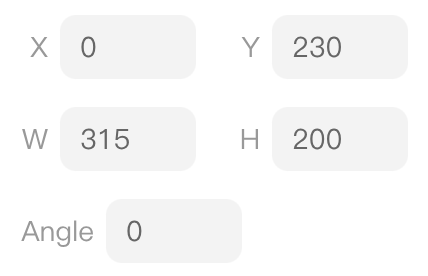 | Set coordinates for object placement. |
| Size | 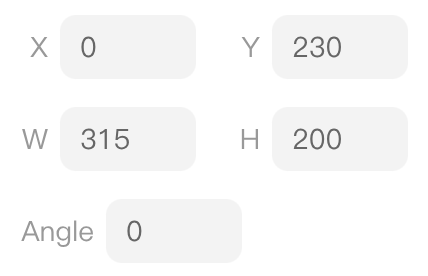 | Adjust width and height. |
| Rotation | 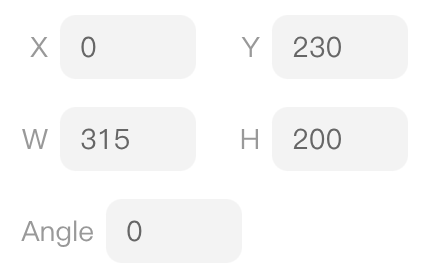 | Adjust rotation angle. |
| Image |  | Set aspect ratio and fitting mode. |
| Mirror |  | Flip horizontally or vertically. |
| Layer |  | Arrange object stacking order |
② Advanced Tips
| Property | Function | |
|---|---|---|
| Chroma Key | 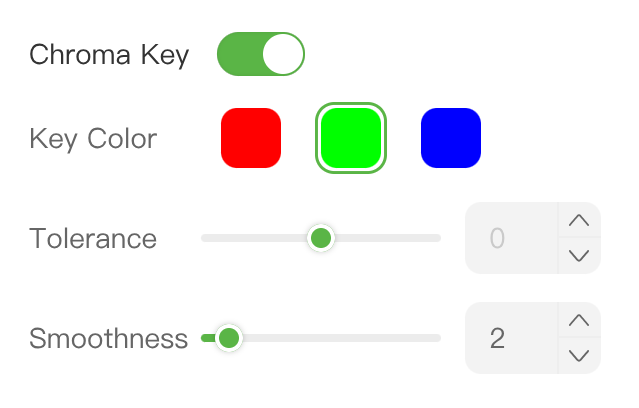 | Remove background color from images or videos. Enable Chroma Key, select the background color, then adjust **Similarity **and Smoothness. |
| Opacity |  | Adjust transparency. For watermark text, an opacity of about 30% is recommended. |
| ... | ... | ... |
Beauty Mode
🔔 Update streamZ to the latest system version via System Settings in the web interface to use this feature.
streamZ live studio supports beauty enhancement, including skin smoothing, brightening, rosy complexion adjustments, and so on.