Online Manual
streamZ User Guide

3.1 streamZ deck Guide
streamZ supports the streamZ Deck control panel.
Use physical shortcuts to switch sources, toggle orientation, and start streaming/recording instantly—no screen tapping required.
| streamZ deck (black) | |
|---|---|
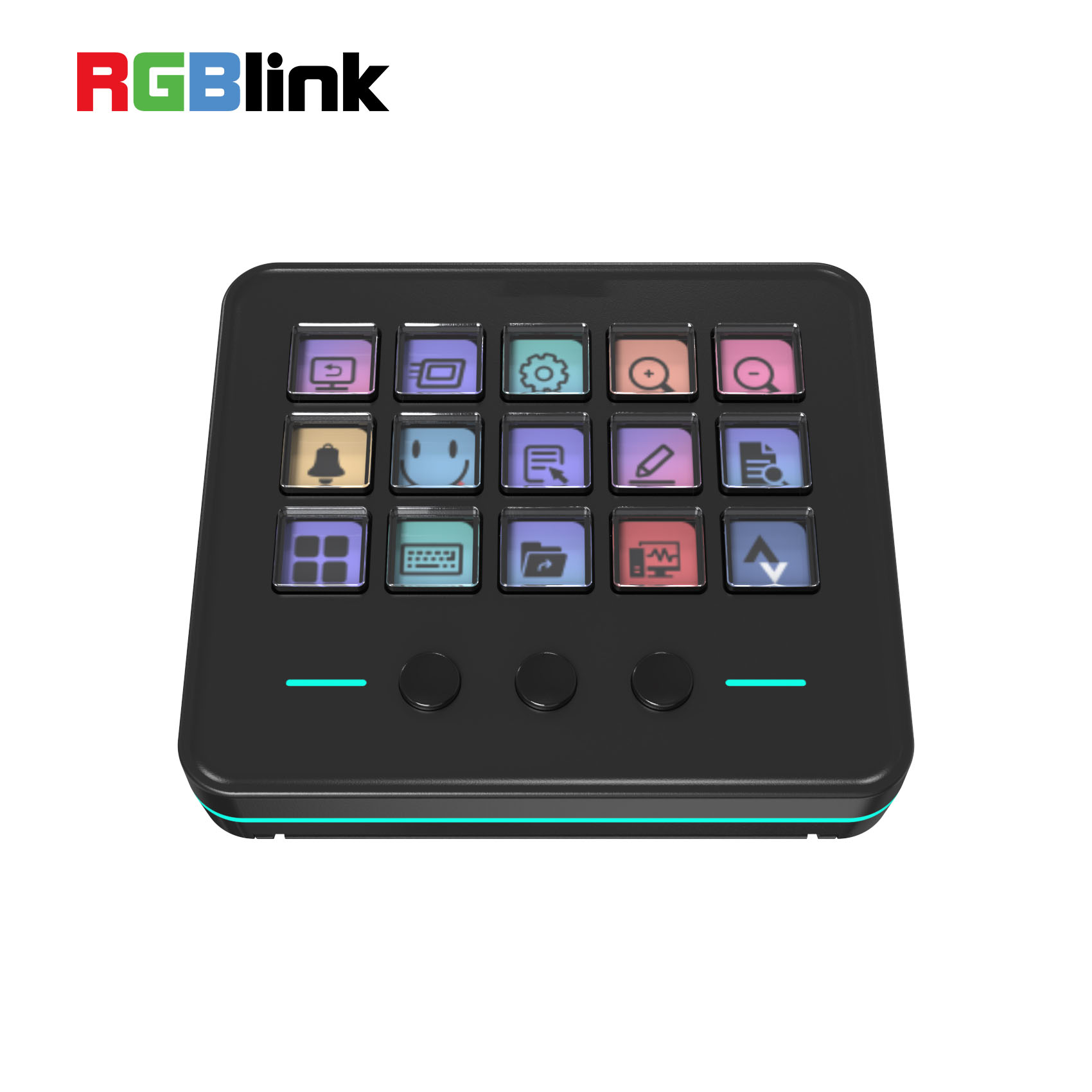 | 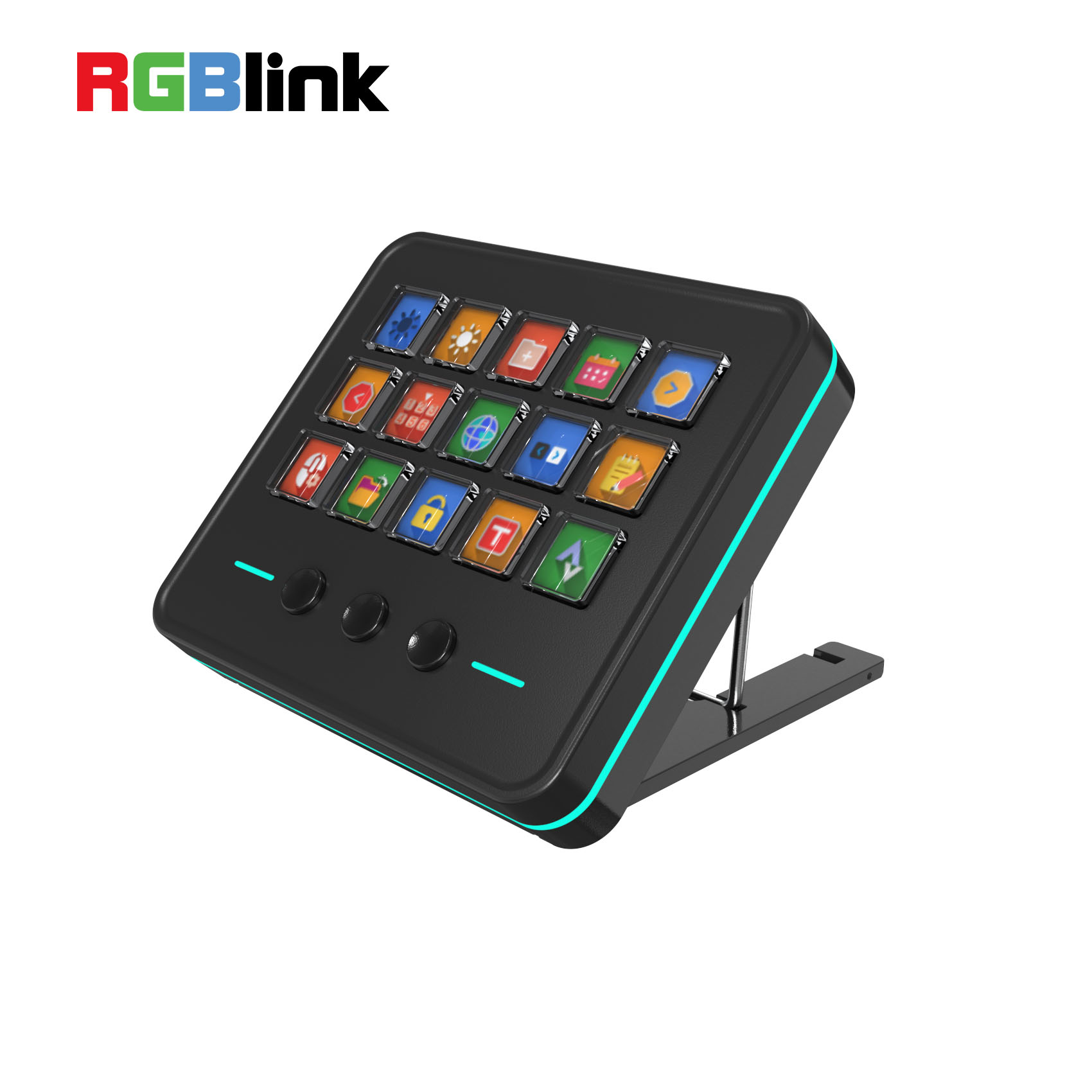 |
Device Connection
- Connect streamZ to a power source.
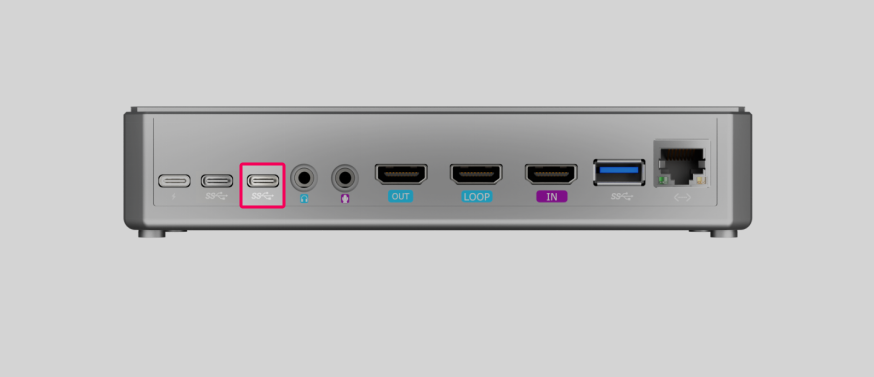
- Use the included cable to link the streamZ Deck to the main unit.
- On startup, the panel defaults to Landscape mode.
 📢  Tip

We recommend using a dock via the UVC port. This keeps your USB-A ports free for cameras and ensures stable signal transmission.

For more about dock, see _3.2 Dock Expansion Guide_.
Control Layout
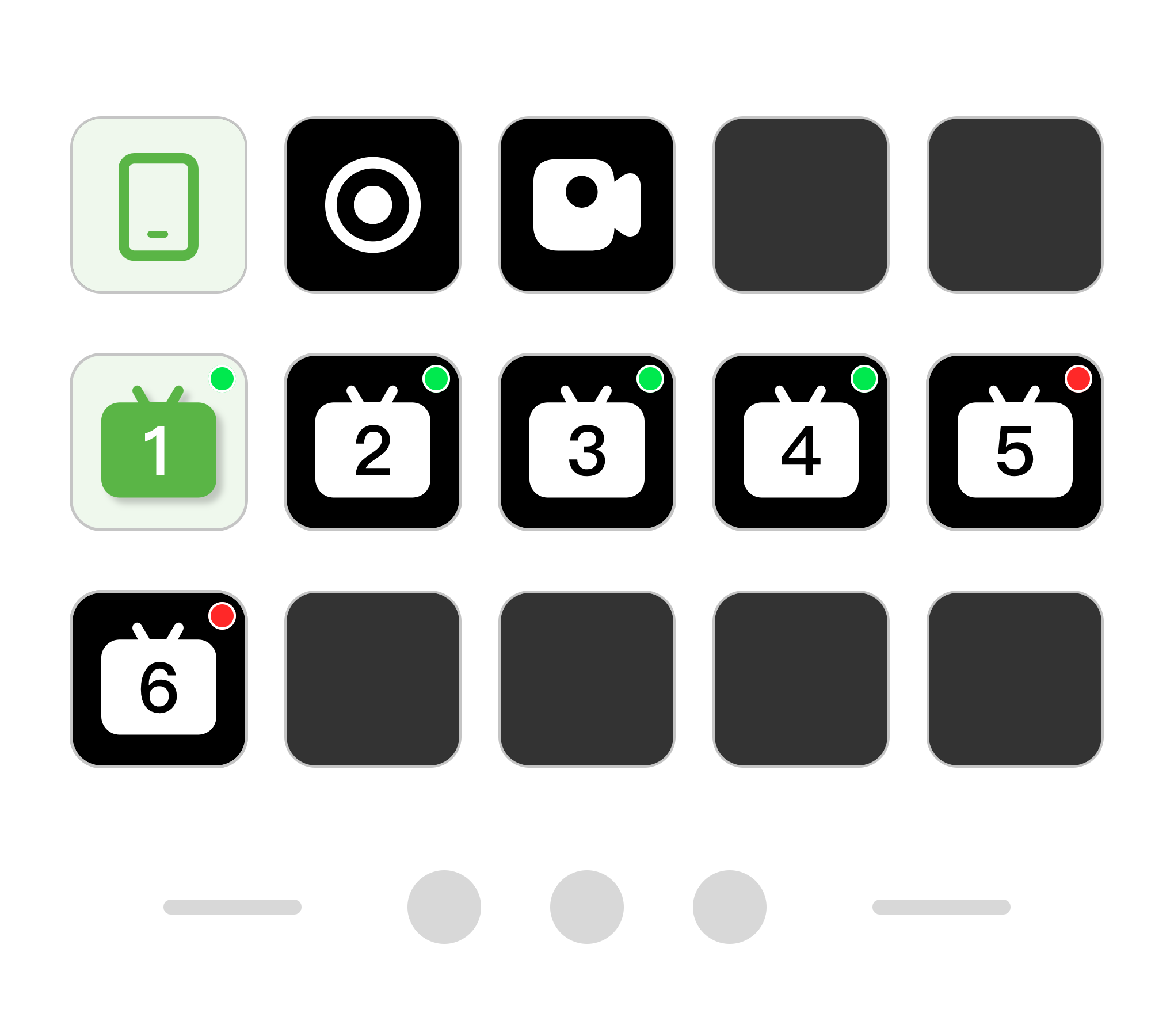
| Module | Desc. | Status |
| Screen Mode | Toggle between Landscape and Portrait | Green: Function active. |
| Scene Switch |  | Top-right indicator dot shows scene status. Unavailable/Not created: Black background and red dot. Available: Black background and green dot. Active/Selected: Green background and green dot. |
| Recording | Record the selected signal. | ⚪White: OFF; 🔴Red: ON |
| Streaming | Push signal to enabled platforms. | ⚪White: OFF; 🔴Red: ON |
| Mode Toggle | Switch between Live Mode and Browser Mode | Click to toggle |
| Navigation |  | / |
 📢  PRO TIPS

The Deck triggers Start/Stop actions only. You must configure and save your stream URLs via the Web Dashboard first. See 1.4.2 Stream to Platforms for details.
Customizing Your Layout
Tailor the button mapping to your workflow:
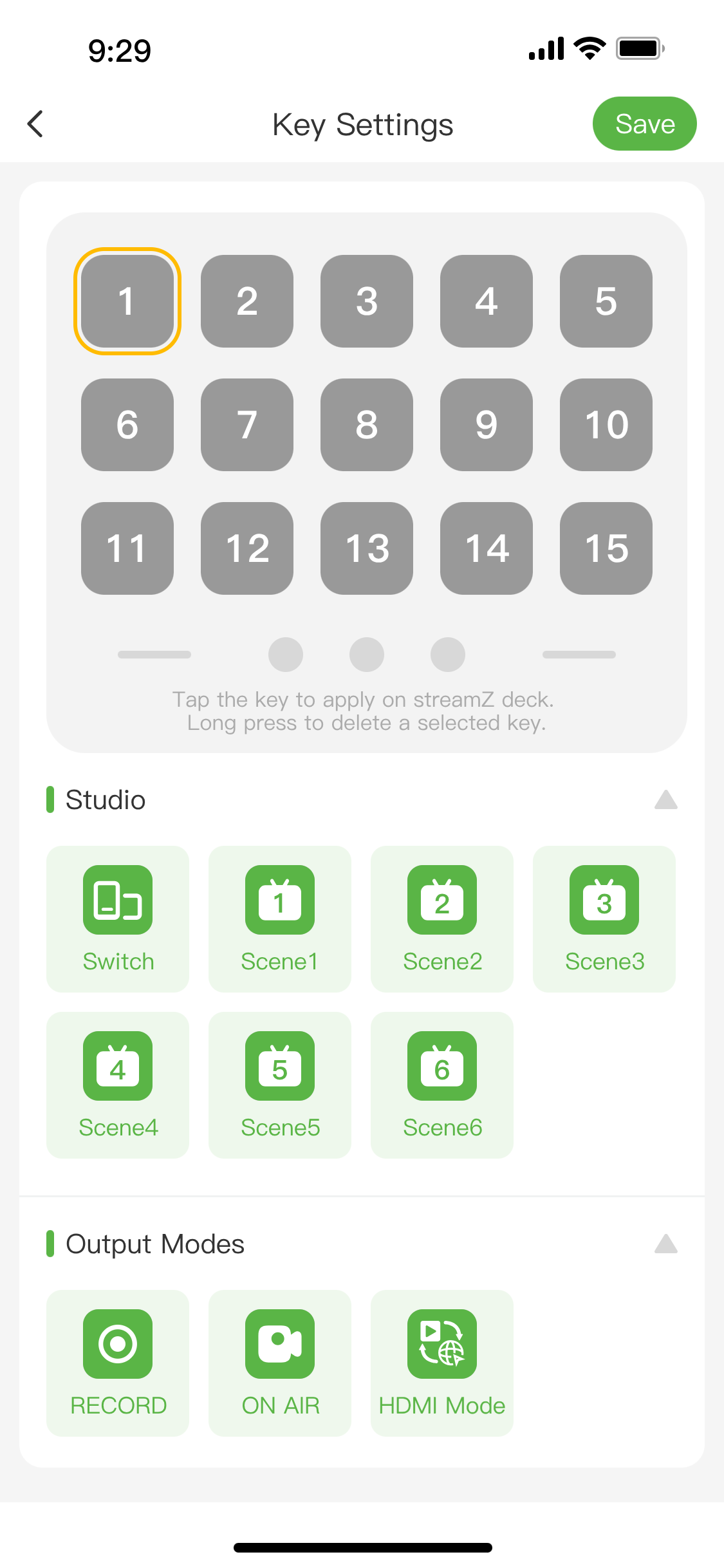
- Open the TAO App, tap streamZ Deck, and enter the Key Settings.
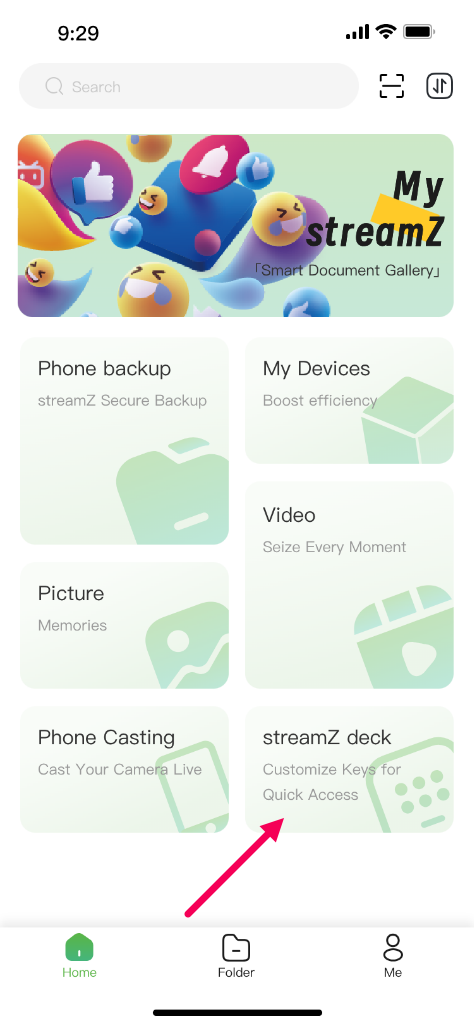 |  |
|---|
- Tap an empty key and select one from the menu (Studio and Output Modes).
- Long-press any button to delete a selected key.
- Tap Save and restart the streamZ Deck to sync your new layout.
Status Confirmation
Physical switching and recording work offline as long as streamZ is powered on. However, Streaming still requires an active Wi-Fi or Ethernet connection.